
The Shopify product labels vs badges question is confusing because app listings, themes, and merchants often use the words differently. A label may be called a badge or sticker, while a sale badge is really one specific kind of product label. Trust icons and announcement banners solve different communication jobs again.
The useful choice is not the name. It is the scope of the message: one product, one verified discount, one piece of reassurance, or a campaign that applies across a page or store. This guide gives each element a clear role so shoppers do not have to decode a stack of repeated promotions.
TL;DR
- Use a product label for a short, product-specific fact. New in, Limited color, or Online exclusive can help a shopper scan a catalog when the claim is accurate.
- Use a sale badge only for a real price or promotion. Keep the displayed badge consistent with the current product price and offer conditions.
- Use a trust icon for factual reassurance near the relevant decision. It should point to a policy or service the store actually provides, not imply a guarantee that does not exist.
- Use an announcement banner for a broad campaign message. Give it one primary action and remove it when the campaign ends.
Shopify product labels vs badges: quick decision table
Choose the smallest element that can communicate the message in context. Smaller scope usually means less visual competition and simpler targeting.
| Element | Best job | Typical scope | Good first check |
|---|---|---|---|
| Product label | Highlight a factual product attribute or status | Selected products or a product rule | Does every targeted product support the claim? |
| Sale badge | Make a genuine discount easier to notice | Only products covered by the offer | Does the current price agree with the badge? |
| Trust icon | Summarize a real policy, payment, or service cue | Near the supporting purchase information | Can a shopper verify the promise? |
| Announcement banner | Present a page-wide or store-wide campaign | A broad audience, page, or campaign | Is the message relevant on every page where it appears? |
Decide by message scope and evidence, not by whichever name a theme or app uses.
Use product labels for item-specific facts
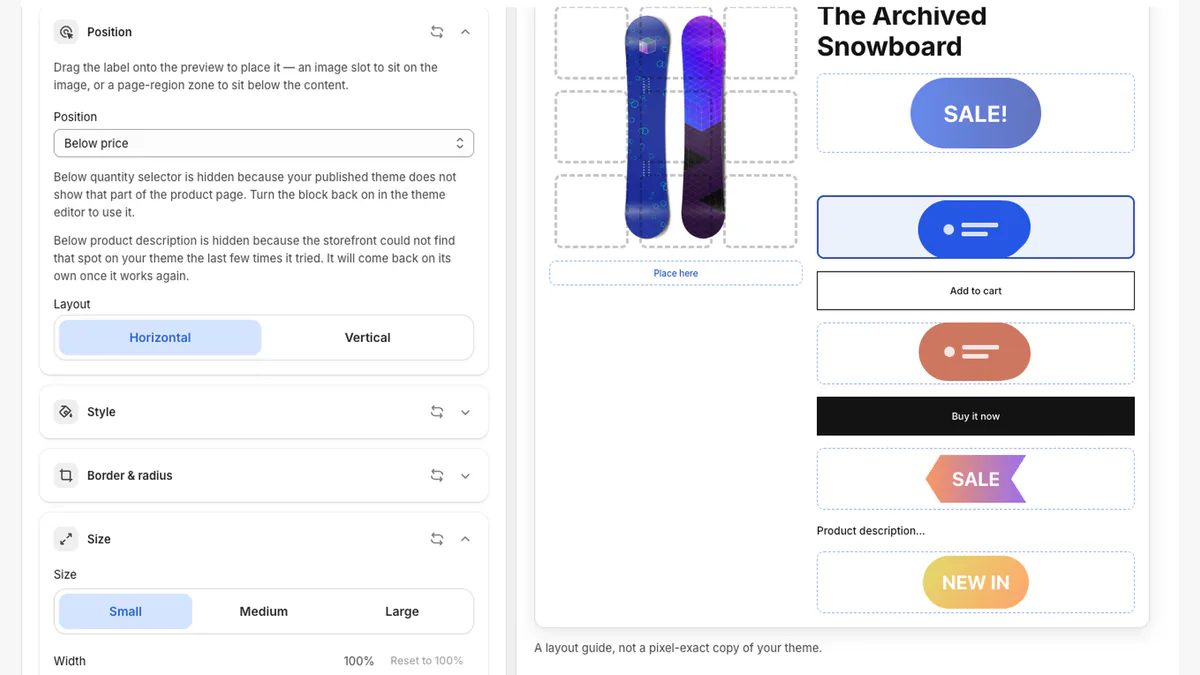
A product label is the broadest product-level category in this guide. It gives a shopper a compact cue about an item: New in, Limited edition, Staff pick, or another statement supported by product data and merchandising policy. It can sit on an image or near product information, depending on the theme and supported placement.
Use a label when the message should follow a defined set of products rather than every page. Write the rule before designing the badge: for example, products in one launch collection during a fixed date range. Then inspect a matching product and a non-matching product. If you cannot describe the targeting rule or prove the label text, the campaign is not ready to publish.
Use sale badges for verified price messages
A sale badge is a product badge with a narrower promise: this product currently has a genuine discount or qualifies for a stated offer. That means its lifecycle should follow the price or promotion. A badge that says 20% off while the product page shows a different reduction creates a data-integrity problem, even if the artwork looks polished.
Prefer wording that the page can support. Sale may be clearer than calculating a percentage manually when variants have different prices. If the offer has conditions, put the complete terms where shoppers can read them and treat the badge as a pointer, not the full policy. Set an end date or removal checkpoint, and verify the live price after the campaign changes.
Use trust icons for factual reassurance
A trust icon is not a sale message. It condenses a real policy or service cue, such as a supported payment method, a documented return window, or a shipping option available for the product and destination. Place it near the information it summarizes. A shipping cue beside shipping details is easier to understand than a row of generic symbols floating above the product title.
The icon should never be the only evidence. Keep the full policy accessible in text, avoid security or certification marks you are not entitled to use, and do not imply universal delivery times when fulfillment varies. More icons do not automatically create more confidence. One relevant, verifiable cue is stronger than a decorative wall of assurances.
Use announcement banners for broad campaigns
An announcement banner works at page or campaign level. It can introduce a seasonal event, a free-shipping threshold, a launch, or another message that remains relevant wherever the banner appears. Because it occupies more space and can include a button, image, or countdown, it asks for more attention than a product label. Give it one clear priority.
Only use a countdown for a real deadline, and decide what the banner should do when time expires. Buttons should lead to the promised destination. If the campaign applies to only six products, a targeted label may be more honest than a site-wide banner. If it applies across a collection or store, the banner can introduce the event while product badges identify the exact eligible items.
Combine elements without repeating the same message
Useful pairings
A banner and product badge can work together when they answer different questions. The banner might announce a summer sale and link to the collection; sale badges can identify which products are included. A product label and trust icon can also coexist when one describes the item and the other points to a relevant store policy. Keep hierarchy obvious: one primary campaign message, then supporting cues.
When to remove an element
Remove an element when it repeats nearby text, covers product media, competes with the buy controls, or depends on a condition the page cannot explain. Also remove stale messages promptly. A sale banner, image badge, price label, and button all saying the same thing do not make the offer four times clearer; they make the page harder to scan.
Check mobile layout and accessibility
Preview every element at a narrow mobile width as well as on desktop. Product galleries, sticky purchase controls, long titles, and translated text can leave less room than an editor mockup suggests. Keep labels short, avoid covering the product's important visual details, and test the published theme because previews are layout guides rather than pixel-exact copies of every storefront.
Do not rely on color, shape, or an icon alone to carry essential information. Use readable text and sufficient contrast, keep the underlying price, policy, and promotion terms available in normal page content, and make button labels describe their destination. Zoom the page, navigate interactive banner controls with a keyboard, and check that the element does not obscure existing links or form controls.
A six-step decision workflow
- Write the exact claim and its evidence. Record the price, product attribute, policy, or campaign terms that support the message.
- Define the audience. Decide whether it applies to one product, a rule-based group, a collection, a page, or the whole store.
- Choose the smallest suitable element. Product fact means label; verified discount means sale badge; factual reassurance means trust icon; broad campaign means banner.
- Preview the hierarchy. Check desktop and mobile, then remove repeated messages before adding another element.
- Verify both sides of the rule. Open a page that should show the element and another that should not. Confirm the live price and destination.
- Set the review date. Schedule removal or revalidation, then observe engagement without claiming that the element caused a sale.
Frequently asked questions
Are Shopify product labels and badges the same thing?
They often overlap in everyday use. Product label is a useful umbrella term, while badge usually describes the compact visual treatment. A sale badge is a narrower label tied to a real discount or promotion. Define the message and scope instead of relying on the name.
Should I use a sale badge or an announcement banner?
Use a sale badge when the message belongs to specific discounted products. Use a banner when a broader campaign is relevant across a page, collection, or store. They can work together if the banner introduces the event and the badges identify eligible items.
How many trust icons should appear on a product page?
There is no universal number. Start with one relevant, verifiable cue near the policy or purchase information it summarizes. Add another only when it answers a different shopper question without crowding the page or repeating existing content.
Will these elements work on every Shopify theme?
No tool should promise identical placement on every theme. Theme structures and enabled sections differ. Use supported positions, preview desktop and mobile, and inspect the live published theme before expanding from a test product or campaign.
Can labels, icons, and banners improve sales?
They can make accurate merchandising information easier to notice, but an impression, click, or add-to-cart event does not prove incremental revenue. Measure engagement, keep the campaign stable during the observation period, and avoid treating correlation as causation.
Sources and further reading
- Shopify Developers: Liquid product price and compare-at price
- Shopify Developers: Theme sections
- Shopify Developers: Theme app extensions
- Shopify Developers: Theme accessibility best practices
Choose one element for your first campaign
The Shopify product labels vs badges decision gets easier when you start with one claim and one scope. Review the LumenCanvas product page for the current label, icon, banner, targeting, preview, and analytics workflow. Start on one demonstration or low-risk product and verify the published theme before widening the audience.
Ready to build that controlled first test? Install LumenCanvas and keep the element in draft until its message, targeting, desktop layout, mobile layout, and live destination have all been checked.